Python PyQt
PyQt is a powerful Python library for creating graphical user interfaces (GUIs), which can be used as an alternative to Python’s built-in Tkinter.
PyQt is the Python binding for the Qt framework and is widely used in desktop application development.
Qt is a cross-platform C++ application development framework.
PyQt allows Python developers to leverage the Qt library to create powerful GUI applications.
PyQt has the following major versions:
- PyQt4: Binding based on Qt4
- PyQt5: Binding based on Qt5
- PyQt6: Binding based on Qt6 (latest version)
Installing PyQt
Section titled “Installing PyQt”Install PyQt5 using pip:
Your First PyQt Program
Section titled “Your First PyQt Program”Creating a Simple Window
Section titled “Creating a Simple Window”Below is the most basic PyQt program, creating a blank window:
Example
Section titled “Example”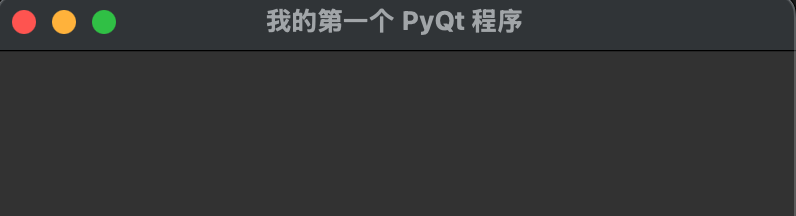
Code Explanation
Section titled “Code Explanation”QApplication: Manages the control flow and main settings of the GUI application.QWidget: The most basic window class; all UI components inherit from it.setWindowTitle(): Sets the window title.setGeometry(): Sets the window position and size.show(): Displays the window.app.exec_(): Starts the event loop, waiting for user interaction.
A typical PyQt application consists of the following parts:
- QApplication Object: Every PyQt application needs a QApplication instance
- Windows and Widgets: User interface components
- Event Loop: The loop that handles user input and system events
- Event Handlers: Functions or methods that respond to events
Example
Section titled “Example”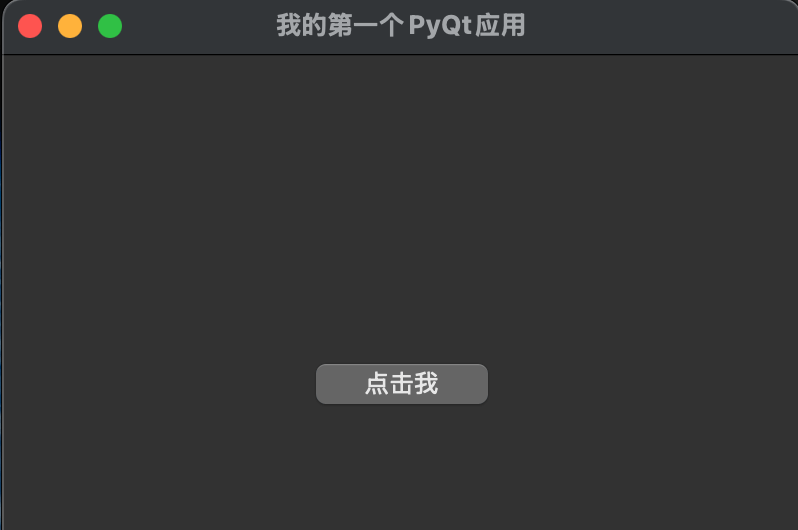
Common PyQt Widgets
Section titled “Common PyQt Widgets”Button (QPushButton)
Section titled “Button (QPushButton)”Example
Section titled “Example”Label (QLabel)
Section titled “Label (QLabel)”Example
Section titled “Example”Text Box (QLineEdit)
Section titled “Text Box (QLineEdit)”Example
Section titled “Example”For more common widget content, refer to: https://www.runoob.com/python3/python-pyqt-widgets.html
Layout Management (QVBoxLayout)
Section titled “Layout Management (QVBoxLayout)”Using layout managers allows automatic adjustment of widget positions:
Example
Section titled “Example”For more layout management content, refer to: https://www.runoob.com/python3/python-pyqt-layout.html
Signals and Slots Mechanism
Section titled “Signals and Slots Mechanism”PyQt uses the Signal and Slot mechanism to handle events.
PyQt’s signal and slot mechanism is the core mechanism for communication between objects.
- Signal: A notification emitted when a specific event occurs
- Slot: A function or method that responds to a signal
Example
Section titled “Example”Custom Signals
Section titled “Custom Signals”Example
Section titled “Example”For more signals and slots content, refer to: https://www.runoob.com/python3/python-pyqt-signals-and-slots.html
Using Qt Designer
Section titled “Using Qt Designer”Qt Designer is a visual design tool that allows you to drag and drop widgets to design interfaces:
-
Launch Designer (usually located in the Python installation directory under Lib\site-packages\qt5_applications\Qt\bin)
-
Design the interface and save it as a .ui file
-
Convert the .ui file to Python code:
Using the generated interface in code:
Example
Section titled “Example”Hands-on: A Simple Notepad Application
Section titled “Hands-on: A Simple Notepad Application”Interface Design
Section titled “Interface Design”Example
Section titled “Example”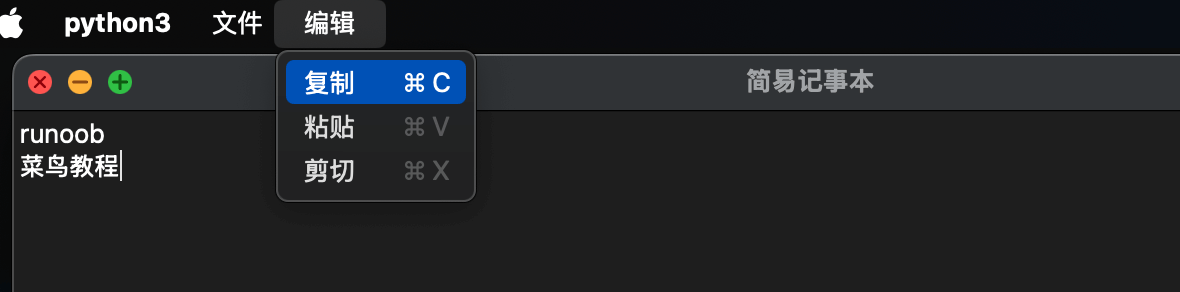
PyQt5 Core Components
Section titled “PyQt5 Core Components”Most widgets are located in PyQt5.QtWidgets.
Advanced features (such as multimedia, networking) may require other modules (such as QtCore, QtGui, QtNetwork, etc.).
QListView/QTableView/QTreeView need to be used with data models (such as QStandardItemModel) for greater flexibility.
Other installable extensions:
| Widget Category | Widget Name | Module | Description |
|---|---|---|---|
| Basic Window Widgets | QWidget |
QtWidgets |
Base class for all user interface objects, can be used as a blank window or container |
QMainWindow |
QtWidgets |
Main window framework, includes menu bar, toolbar, status bar, etc. | |
QDialog |
QtWidgets |
Dialog base class, used for pop-up windows | |
| Layout Management | QVBoxLayout |
QtWidgets |
Vertical layout manager |
QHBoxLayout |
QtWidgets |
Horizontal layout manager | |
QGridLayout |
QtWidgets |
Grid layout manager | |
QFormLayout |
QtWidgets |
Form layout manager (label + input field pairs) | |
| Button Widgets | QPushButton |
QtWidgets |
Regular button |
QRadioButton |
QtWidgets |
Radio button | |
QCheckBox |
QtWidgets |
Checkbox | |
QToolButton |
QtWidgets |
Toolbar button (can have icons) | |
| Input Widgets | QLineEdit |
QtWidgets |
Single-line text input box |
QTextEdit |
QtWidgets |
Multi-line rich text editor (supports HTML) | |
QPlainTextEdit |
QtWidgets |
Multi-line plain text editor | |
QSpinBox |
QtWidgets |
Integer spin box | |
QDoubleSpinBox |
QtWidgets |
Floating-point spin box | |
QComboBox |
QtWidgets |
Dropdown selection box | |
QDateEdit |
QtWidgets |
Date picker | |
QTimeEdit |
QtWidgets |
Time picker | |
QDateTimeEdit |
QtWidgets |
Date and time picker | |
QSlider |
QtWidgets |
Slider (horizontal/vertical) | |
QDial |
QtWidgets |
Dial knob widget | |
| Display Widgets | QLabel |
QtWidgets |
Text/image label |
QLCDNumber |
QtWidgets |
LCD number display | |
QProgressBar |
QtWidgets |
Progress bar | |
QStatusBar |
QtWidgets |
Status bar (usually used with QMainWindow) |
|
| Container Widgets | QGroupBox |
QtWidgets |
Group box (container with a title) |
QTabWidget |
QtWidgets |
Tab container | |
QStackedWidget |
QtWidgets |
Stacked container (shows one child widget at a time) | |
QScrollArea |
QtWidgets |
Scroll area container | |
QMdiArea |
QtWidgets |
MDI (Multiple Document Interface) area | |
| List/Table/Tree | QListWidget |
QtWidgets |
List widget (with item management) |
QTreeWidget |
QtWidgets |
Tree widget | |
QTableWidget |
QtWidgets |
Table widget | |
QListView |
QtWidgets |
List view (requires data model) | |
QTableView |
QtWidgets |
Table view (requires data model) | |
QTreeView |
QtWidgets |
Tree view (requires data model) | |
| Menu/Toolbar | QMenuBar |
QtWidgets |
Menu bar |
QMenu |
QtWidgets |
Menu (can contain submenus and actions) | |
QToolBar |
QtWidgets |
Toolbar | |
QAction |
QtWidgets |
Action (used for menu items, toolbar buttons, etc.) | |
| Dialogs | QFileDialog |
QtWidgets |
File selection dialog |
QColorDialog |
QtWidgets |
Color selection dialog | |
QFontDialog |
QtWidgets |
Font selection dialog | |
QInputDialog |
QtWidgets |
Input dialog (text, numbers, etc.) | |
QMessageBox |
QtWidgets |
Message box (warning, error, question, etc.) | |
| Graphics View | QGraphicsView |
QtWidgets |
Graphics view framework (for 2D graphics) |
QGraphicsScene |
QtWidgets |
Graphics scene (used with QGraphicsView) |
|
| Other Feature Widgets | QCalendarWidget |
QtWidgets |
Calendar widget |
QSplashScreen |
QtWidgets |
Splash screen | |
QSystemTrayIcon |
QtWidgets |
System tray icon | |
QWebEngineView |
QtWebEngineWidgets |
Web browser component (requires separate PyQtWebEngine installation) |