Python3 Strings
Strings are the most commonly used data type in Python. We can use quotes ( ’ or “ ) to create strings.
Creating a string is simple — just assign a value to a variable. For example:
Python Accessing String Values
Section titled “Python Accessing String Values”Python does not support a single character type; a single character is also treated as a string in Python.
Python uses square brackets [] to access substrings. The syntax for slicing a string is as follows:
The index starts at 0, and -1 represents the position from the end.

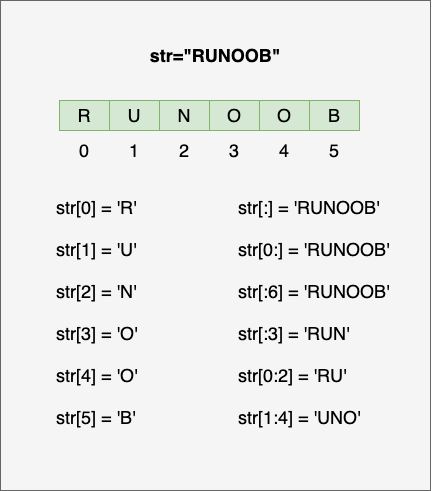
Example:
Example (Python 3.0+)
Section titled “Example (Python 3.0+)”Output of the above example:
Python String Update
Section titled “Python String Update”You can slice a portion of a string and concatenate it with other strings, as shown in the example below:
Example (Python 3.0+)
Section titled “Example (Python 3.0+)”Output of the above example:
Python Escape Characters
Section titled “Python Escape Characters”When you need to use special characters in a string, Python uses the backslash \ to escape them. The table below shows all escape characters:
| Escape Character | Description | Example |
|---|---|---|
| \(at end of line) | Line continuation | |
| \\ | Backslash | |
| \' | Single quote | |
| \" | Double quote | |
| \a | Bell | |
| \b | Backspace | |
| \000 | Null | |
| \n | Newline | |
| \v | Vertical tab | |
| \t | Horizontal tab | |
| \r | Carriage return. Moves the content after \r to the beginning of the string, replacing characters one by one until the content after \r is fully replaced. | |
| \f | Form feed | |
| \yyy | Octal value, y represents characters from 0~7, e.g., \012 represents newline. | |
| \xyy | Hexadecimal value, starting with \x, y represents the characters, e.g., \x0a represents newline | |
| \other | Other characters are output in their normal format |
Using \r to implement a percentage progress bar:
Example
Section titled “Example”The following example demonstrates the effects of different escape characters, including single quotes, newlines, tabs, backspace, form feed, ASCII, binary, octal, and hexadecimal values:
Example
Section titled “Example”Python String Operators
Section titled “Python String Operators”In the table below, variable a has the value “Hello” and variable b has the value “Python”:
| Operator | Description | Example |
|---|---|---|
| + | String concatenation | a + b output: HelloPython |
| * | Repeat string | a*2 output: HelloHello |
| [] | Access characters in string by index | a[1] output e |
| [ : ] | Slice a portion of the string, following the left-closed right-open principle. str[0:2] does not include the 3rd character. | a[1:4] output ell |
| in | Membership operator - returns True if the string contains the given character | 'H' in a output True |
| not in | Membership operator - returns True if the string does not contain the given character | 'M' not in a output True |
| r/R | Raw string - all characters are used literally without escape processing. A raw string is almost identical to a normal string except that the letter r (case-insensitive) is placed before the first quote. | |
| % | Format string | See the next section. |
Example (Python 3.0+)
Section titled “Example (Python 3.0+)”Output of the above example:
Python String Formatting
Section titled “Python String Formatting”Python supports formatted string output. Although this may involve very complex expressions, the most basic usage is to insert a value into a string with the format specifier %s.
In Python, string formatting uses the same syntax as the C sprintf function.
Example (Python 3.0+)
Section titled “Example (Python 3.0+)”Output of the above example:
Python string formatting symbols:
Description
Format character and its ASCII code
Format string
Format integer
Format unsigned integer
Format unsigned octal number
Format unsigned hexadecimal number
Format unsigned hexadecimal number (uppercase)
Format floating point number, can specify precision after decimal point
Format floating point number in scientific notation
Same as %e, format floating point number in scientific notation
Shorthand for %f and %e
Shorthand for %f and %E
Format variable address as hexadecimal number
Formatting operator auxiliary directives:
| Symbol | Function |
| * | Define width or decimal precision |
| - | Left-align |
| + | Display plus sign (+) before positive numbers |
| <sp> | Display a space before positive numbers |
| # | Display zero (‘0’) before octal numbers, and ‘0x’ or ‘0X’ before hexadecimal |
| 0 | Pad displayed numbers with ‘0’ instead of spaces |
| % | ‘%%’ outputs a single ‘%’ |
| (var) | Map variable (dictionary argument) |
| m.n. | m is the minimum total width, n is the number of digits after the decimal point |
Starting from Python 2.6, a new string formatting function str.format() was added, which enhances string formatting capabilities.
Python Triple Quotes
Section titled “Python Triple Quotes”Python triple quotes allow a string to span multiple lines, and the string can contain newlines, tabs, and other special characters. Example:
Example (Python 3.0+)
Section titled “Example (Python 3.0+)”Output of the above example:
Triple quotes free programmers from the quagmire of quotes and special characters, maintaining a small block of string format in what is known as WYSIWYG (What You See Is What You Get) format.
A typical use case is when you need a block of HTML or SQL, where string concatenation and special character escaping would be very tedious.
f-string
Section titled “f-string”f-string was added in Python 3.6 and later, known as literal formatted strings, and is a new syntax for string formatting.
Previously, we were used to using the percent sign (%):
Example
Section titled “Example”f-string formatted strings start with f, followed by the string, with expressions enclosed in curly braces {}. It replaces variables or computed expressions with their values. Example:
Example
Section titled “Example”This approach is clearly simpler — no need to decide whether to use %s or %d.
In Python 3.8, you can use the = symbol to concatenate the expression and its result:
Example
Section titled “Example”Unicode Strings
Section titled “Unicode Strings”In Python 2, normal strings were stored as 8-bit ASCII, while Unicode strings were stored as 16-bit unicode strings, allowing representation of a wider character set. The syntax was to prefix the string with u.
In Python 3, all strings are Unicode strings.
Python Built-in String Methods
Section titled “Python Built-in String Methods”Commonly used built-in string methods in Python:
| No. | Method & Description |
|---|---|
| 1 | capitalize() |
| 2 | Returns a string centered in a specified width, with fillchar as the padding character (default is space). |
| 3 | count(str, beg= 0,end=len(string)) Returns the number of occurrences of str in the string. If beg or end is specified, returns the count within the specified range. |
| 4 | bytes.decode(encoding="utf-8", errors="strict") Python 3 does not have a decode method, but we can use the decode() method of the bytes object to decode a given bytes object, which can be encoded and returned by str.encode(). |
| 5 | encode(encoding='UTF-8',errors='strict') Encodes the string in the encoding format specified by encoding. Raises a ValueError by default on error, unless errors is specified as 'ignore' or 'replace'. |
| 6 | endswith(suffix, beg=0, end=len(string)) |
| 7 |
Converts tab characters in the string to spaces. The default number of spaces for a tab is 8. |
| 8 | find(str, beg=0, end=len(string)) Checks if str is contained in the string. If the range beg and end is specified, checks within the specified range. Returns the starting index if found, otherwise returns -1. |
| 9 | index(str, beg=0, end=len(string)) Same as find(), but raises an exception if str is not found in the string. |
| 10 |
Checks if the string consists of letters and digits, i.e., all characters in the string are letters or digits. Returns True if the string has at least one character and all characters are letters or digits; otherwise returns False. |
| 11 |
Returns True if the string has at least one character and all characters are letters or Chinese characters; otherwise returns False. |
| 12 |
Returns True if the string contains only digits; otherwise returns False. |
| 13 |
Returns True if the string contains at least one case-sensitive character and all such characters are lowercase; otherwise returns False. |
| 14 |
Returns True if the string contains only numeric characters; otherwise returns False. |
| 15 |
Returns True if the string contains only whitespace; otherwise returns False. |
| 16 |
Returns True if the string is titlecased (see title()); otherwise returns False. |
| 17 |
Returns True if the string contains at least one case-sensitive character and all such characters are uppercase; otherwise returns False. |
| 18 |
Joins all elements in seq (their string representations) into a new string using the specified string as a separator. |
| 19 |
Returns the length of the string. |
| 20 |
Returns a left-aligned string of length width, padded with fillchar (default space). |
| 21 |
Converts all uppercase characters in the string to lowercase. |
| 22 |
Removes leading spaces or specified characters from the string. |
| 23 |
Creates a translation table for character mapping. In the simplest two-argument invocation, the first argument is the string of characters to convert, and the second argument is the string of target characters. |
| 24 |
Returns the character with the maximum value in string str. |
| 25 |
Returns the character with the minimum value in string str. |
| 26 |
Replaces old with new in the string. If max is specified, replaces at most max occurrences. |
| 27 | rfind(str, beg=0,end=len(string)) Similar to find(), but searches from the right. |
| 28 | rindex( str, beg=0, end=len(string)) Similar to index(), but searches from the right. |
| 29 |
Returns a right-aligned string of length width, padded with fillchar (default space). |
| 30 |
Removes trailing spaces or specified characters from the string. |
| 31 | split(str="", num=string.count(str)) Splits the string using str as the delimiter. If num is specified, only num+1 substrings are split. |
| 32 |
Splits by line breaks ('\r', '\r\n', '\n'), returning a list of lines as elements. If keepends is False, line breaks are not included; if True, they are preserved. |
| 33 | startswith(substr, beg=0,end=len(string)) Checks if the string starts with the specified substring substr. Returns True if so, otherwise False. If beg and end are specified, checks within the specified range. |
| 34 |
Performs both lstrip() and rstrip() on the string. |
| 35 |
Converts uppercase to lowercase and lowercase to uppercase in the string. |
| 36 |
Returns a "titlecased" string, where all words start with uppercase and the remaining letters are lowercase (see istitle()). |
| 37 | translate(table, deletechars="") Translates characters in the string according to the table (containing 256 characters). Characters to be filtered out are placed in the deletechars parameter. |
| 38 |
Converts lowercase letters in the string to uppercase. |
| 39 |
Returns a string of length width, right-aligned, with leading zeros. |
| 40 |
Checks if the string contains only decimal characters. Returns true if so, otherwise false. |